User Guides
< Back to Article ListCSV / XLSX Import issues
Last updated: 26 March 2026 at 13:30:22 UTC by Administrator
Quick Import Process (Do This Every Time)
- Go to the list view of the module (Products, Contacts, Sales, etc.).
- Click Favorites → Import records.
- Upload your CSV or XLSX file.
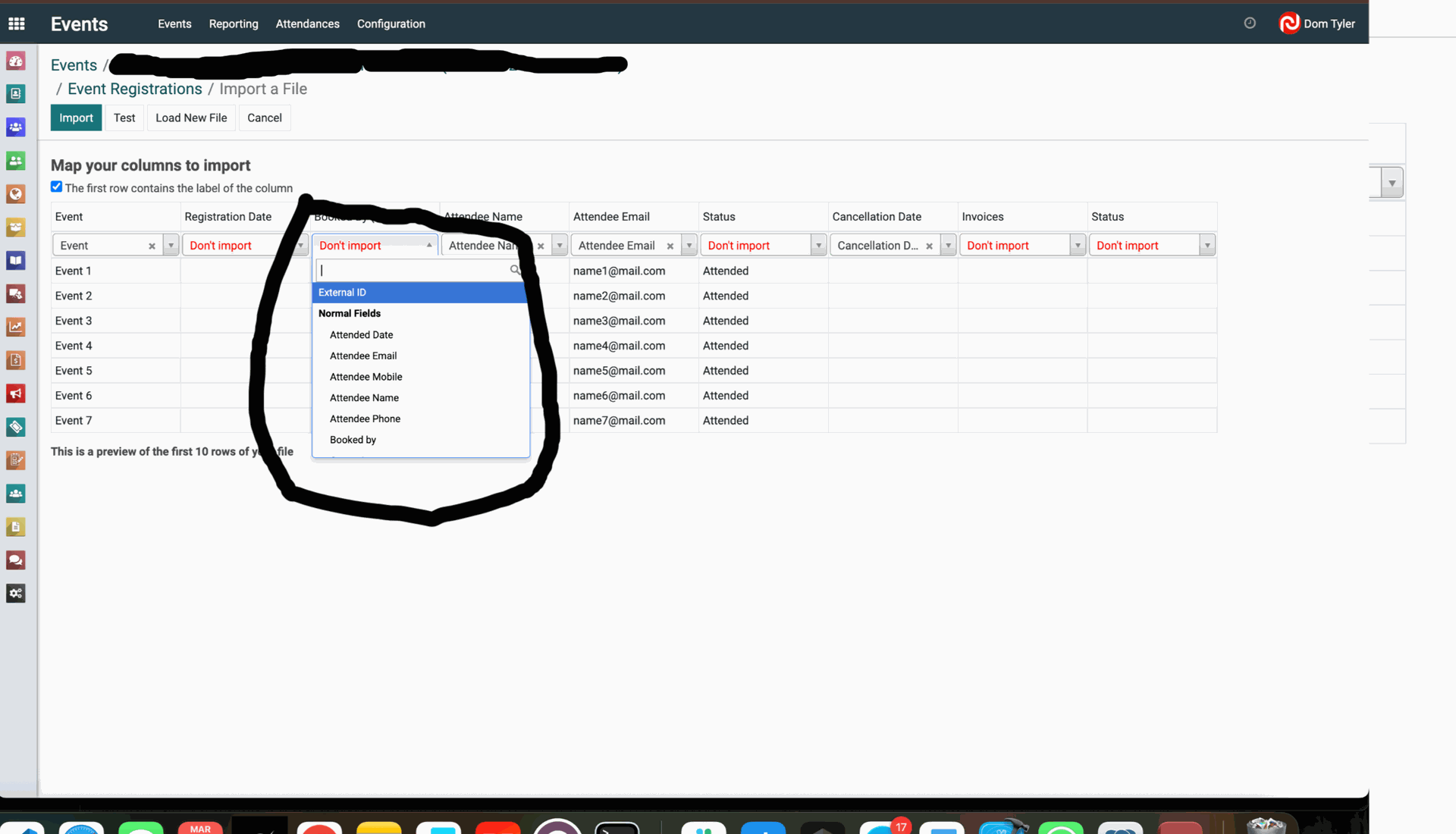
- Map every column:
- Green = auto-mapped (good).
- Red = not mapped (you must fix these).
- Click the dropdown next to each red column and select the correct Odoo field.
- Click Test (never skip this).
- If Test shows green → click Import.
- Done.
Top 10 Common Mistakes When Importing CSV / XLSX in Jams
| # | Mistake | Why it fails | How to avoid |
|---|---|---|---|
| 1 | Skipping mapping when columns are red | Jams blocks until everything is mapped or skips import (depends of field is required or not) | Always fix every red column before clicking Test |
| 2 | Using wrong file format | XLSX with formulas or merged cells | Save as CSV UTF-8 or plain XLSX (no formatting) |
| 3 | Wrong date format | jams expects YYYY-MM-DD | Use only 2025-03-26 format |
| 4 | Numbers with symbols (₹, $, commas) | Treated as text → import fails | Use plain numbers only (e.g. 1250.00) |
| 5 | Missing required fields | highlights them red during mapping | Check the template – fill every required column |
| 6 | Wrong relational data (Category, Customer, UoM, etc.) | Name doesn’t exist | Use exact name or External ID from JAMS |
| 7 | Bad encoding (special characters) | Shows as � or breaks import | Always export/save as UTF-8 |
| 8 | Importing without testing | Hidden errors appear only at the end | Always click Test first |
| 9 | Large file (>1000 rows) in one go | Timeout or memory error | Split into smaller files (500 rows max) |
| 10 | Deleting the “External ID” column | Cannot update existing records later | Keep the External ID column from the official template |
Pro Tips for CSV / XLSX Imports
- Always start with a template: Export first then change the data / Don't change column titles. It has the exact column names.
- If a column stays red even after selecting the field → refresh the page and re-map.
- For updates (not new records), always include the External ID column.